Start here
The Outdoor Club runs a club, not a chat. Everything in it hangs off two things: the club you are in, and the outings that club goes on. If you hold those two, the rest of the app explains itself.
- You are always acting inside one club. The crest at the top left of every screen is which one. Tap it to switch, or to start another.
- Your profile follows you; the club's data does not. Your name, photo, garage and documents are yours and travel to every club you belong to. Posts, outings, the ledger and the map belong to a single club and are never visible from another one.
- There is nothing public. No directory, no search for clubs, no way to reach a club that did not invite you. You get in by invitation, or by founding one.
Getting in
There are exactly two ways to be in a club, and which one you are is decided before you open the app.
You were invited
An admin invited your email address. If you have never used the app, the invitation arrives as an email; if you already have an account, it is simply waiting the next time you sign in. Either way it is the first thing the app shows you, before anything else, and you answer it with Accept or Decline.
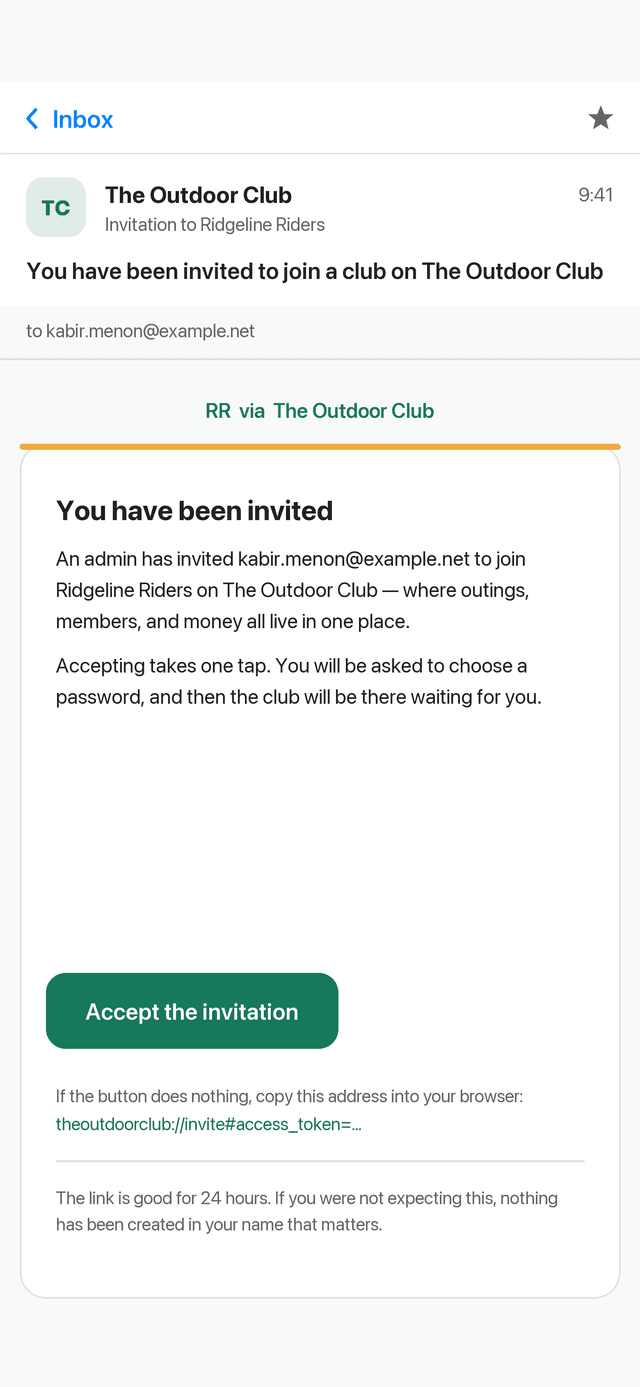
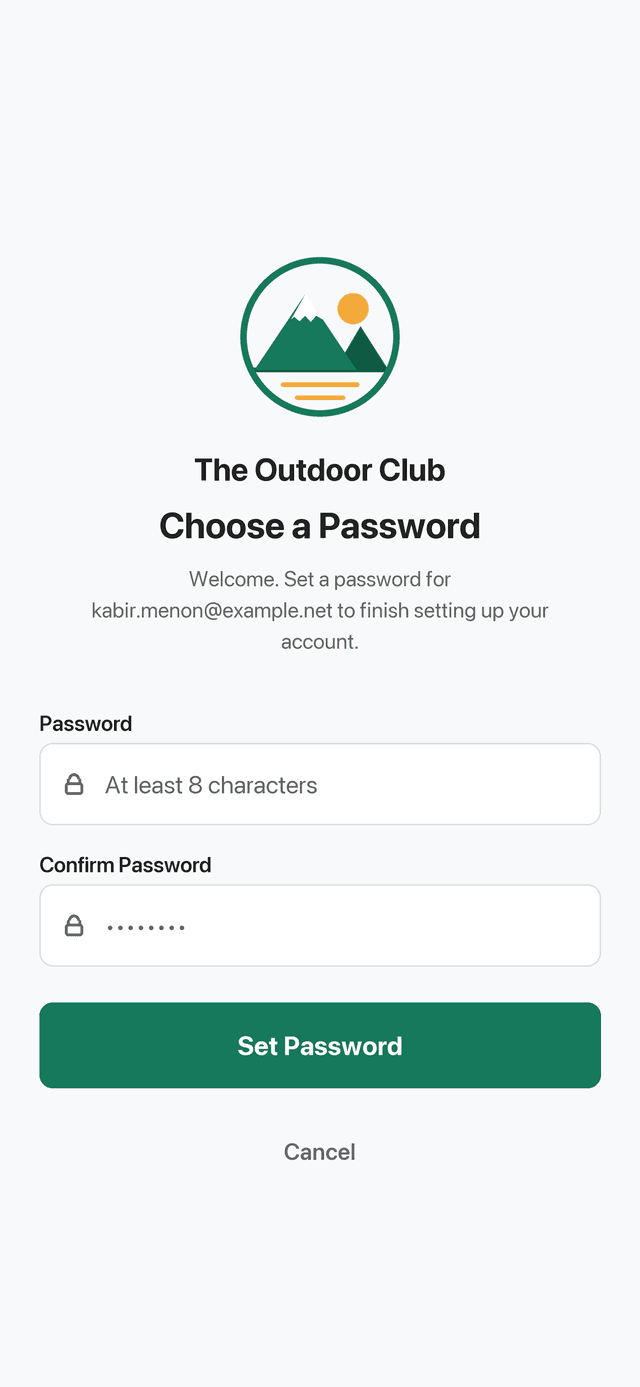
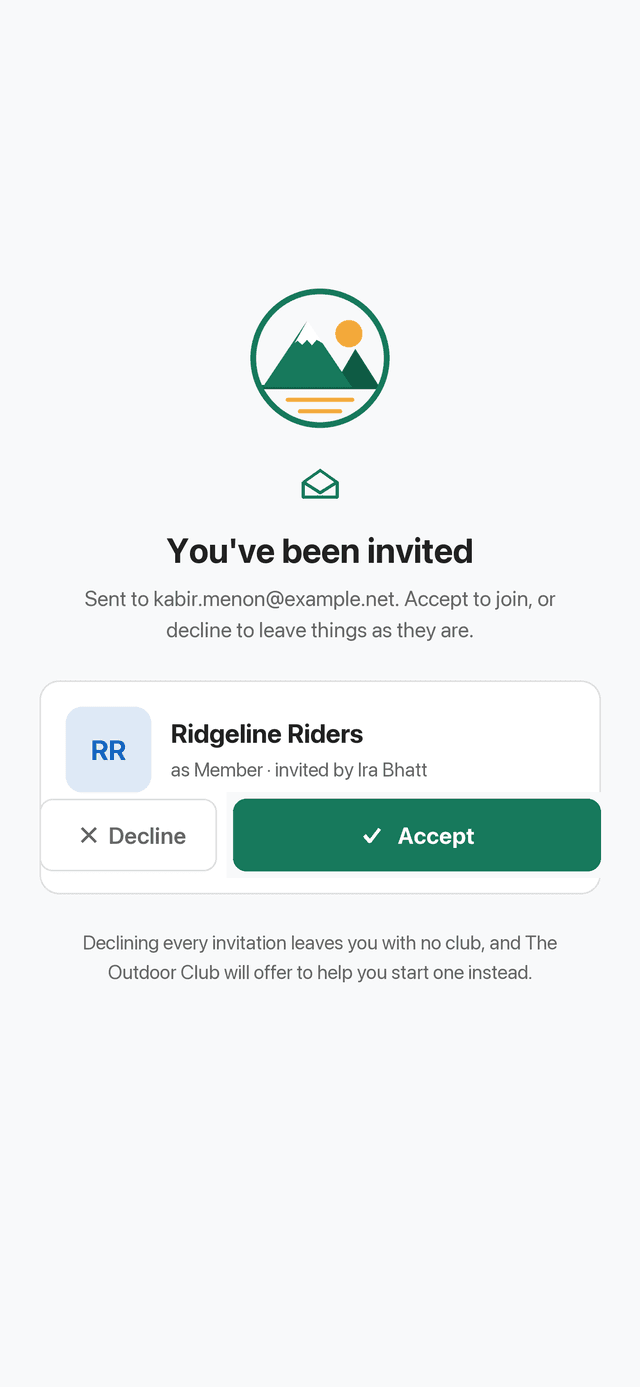
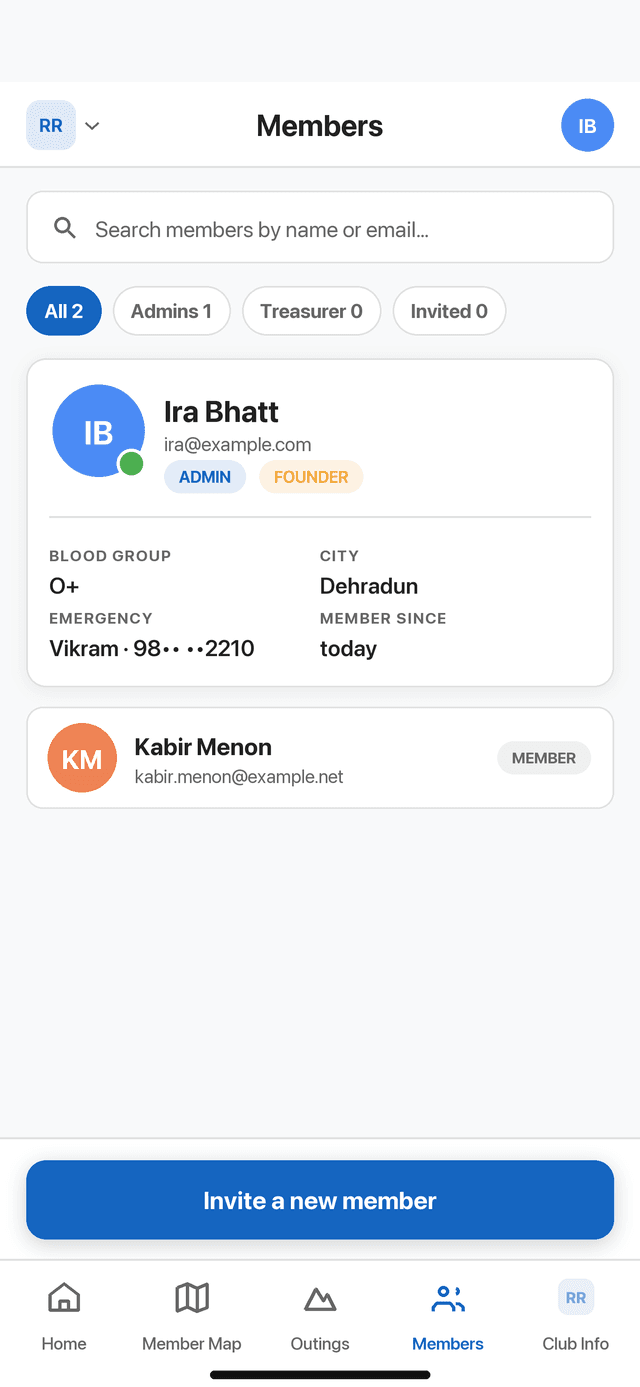
- In your inboxOpen the invitation and press Accept the invitation. The link is good for 24 hours and works once. Follow it on the phone the app is installed on.
- Choose a passwordThe link opens the app and asks for a password of at least eight characters. This is the password you will sign in with from now on.
- Accept the clubThe app names the club, the role you are offered and who invited you. Accept joins it. Decline leaves everything as it was.
- You are inThe club opens. Fill in your profile when the member wizard offers it, and you are a member like any other.
If you signed up before the invitation arrived, use the same email address the club invited. Any invitation sent to that address is waiting for you the moment you sign in. A different address is a different person as far as the app is concerned, and the invitation will not find you.
You are starting a club
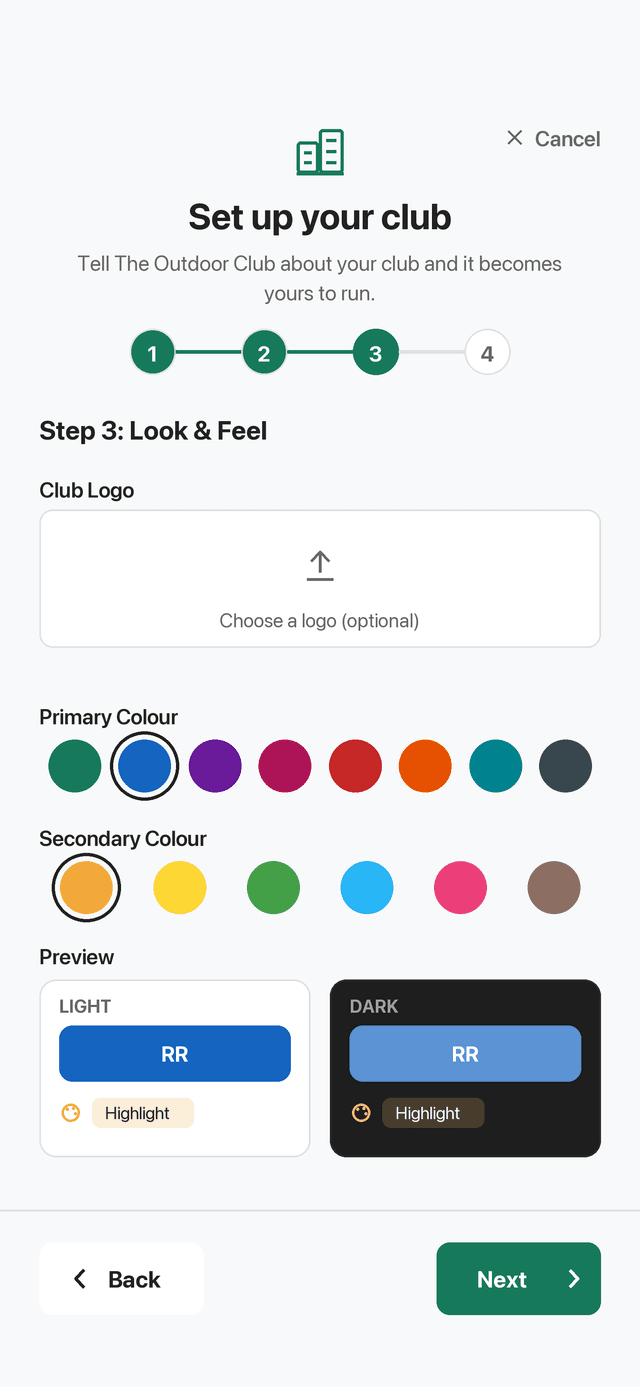
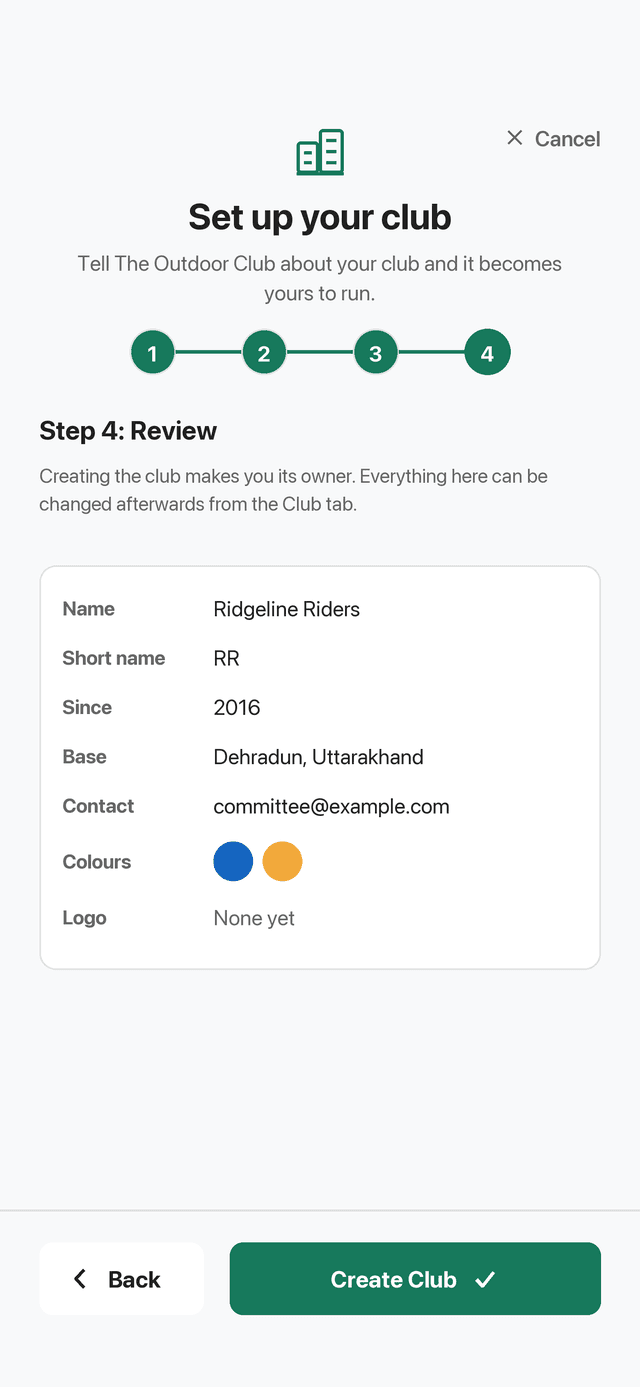
Sign up on the login screen, tick the terms, and confirm your email if you are asked to. With no club and no invitation, the app offers you the club picker, which carries a Create a new club row. That opens a four-step wizard, and finishing it creates the club and makes you its admin.
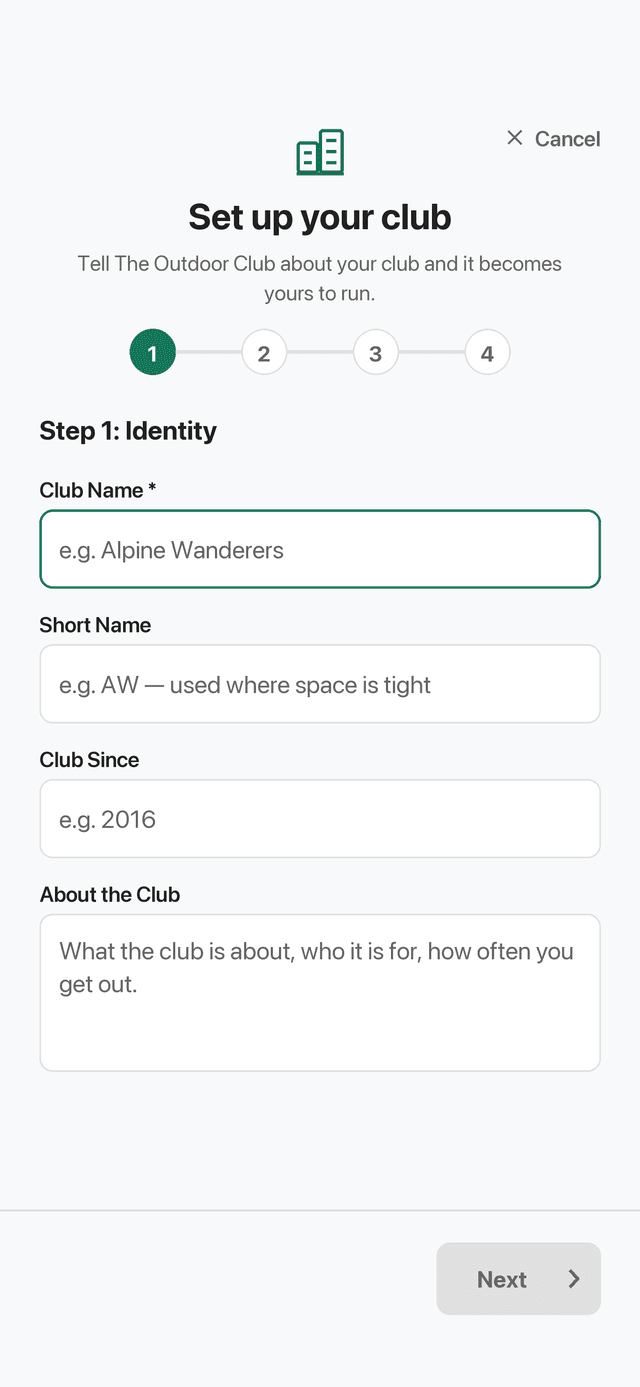
- Step 1 · IdentityThe club's name, a short name for where space is tight, the year it started, and a line or two about what it is for. Only the name is required.
- Step 3 · Look & feelUpload a crest and pick two colours. The whole app takes them: tabs, buttons, the splash screen. Step 2 before it asks where the club is based, its contact address and its currency.
- Step 4 · ReviewEverything you answered, on one screen. Create the club from here. All of it can be edited afterwards from the Club Info tab.
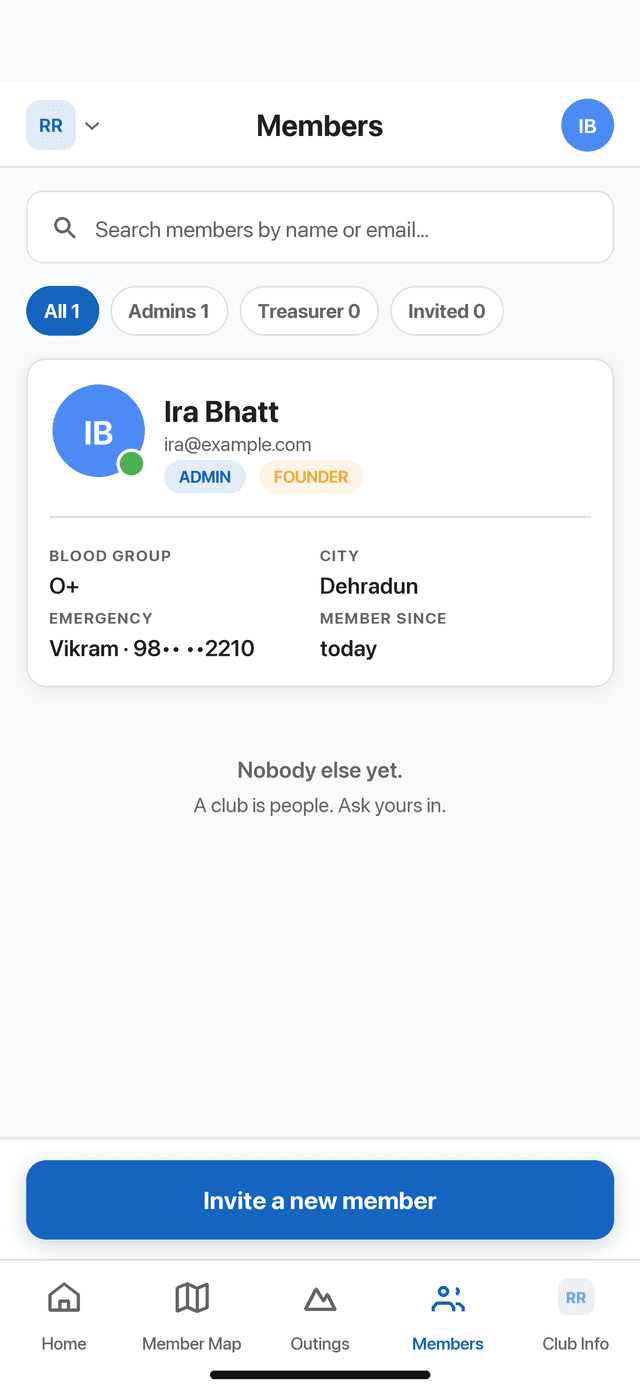
- A club with one memberYou. Go to the Members tab and invite the rest by email; each of them gets the invitation on the left.
The member wizard
Once you are in a club, the app asks who you are. Step 1 is the only required one: full name, mobile number, city, gender and T-shirt size. Steps 2 to 4 (an identity document, your blood group, emergency contact and birthday, then your profession, club history and garage) are optional, and Finish now at the bottom skips straight to the end. Everything in it can be edited later on your profile, so nothing here is permanent.
Do the optional parts anyway if you ride, dive, climb or drive with the club. Blood group and an emergency contact exist for the day somebody needs them, and they are no use filled in afterwards.
The shape of the app
Five tabs along the bottom, and two controls in the bar at the top. That is the whole of the navigation; everything else is reached from inside one of them.
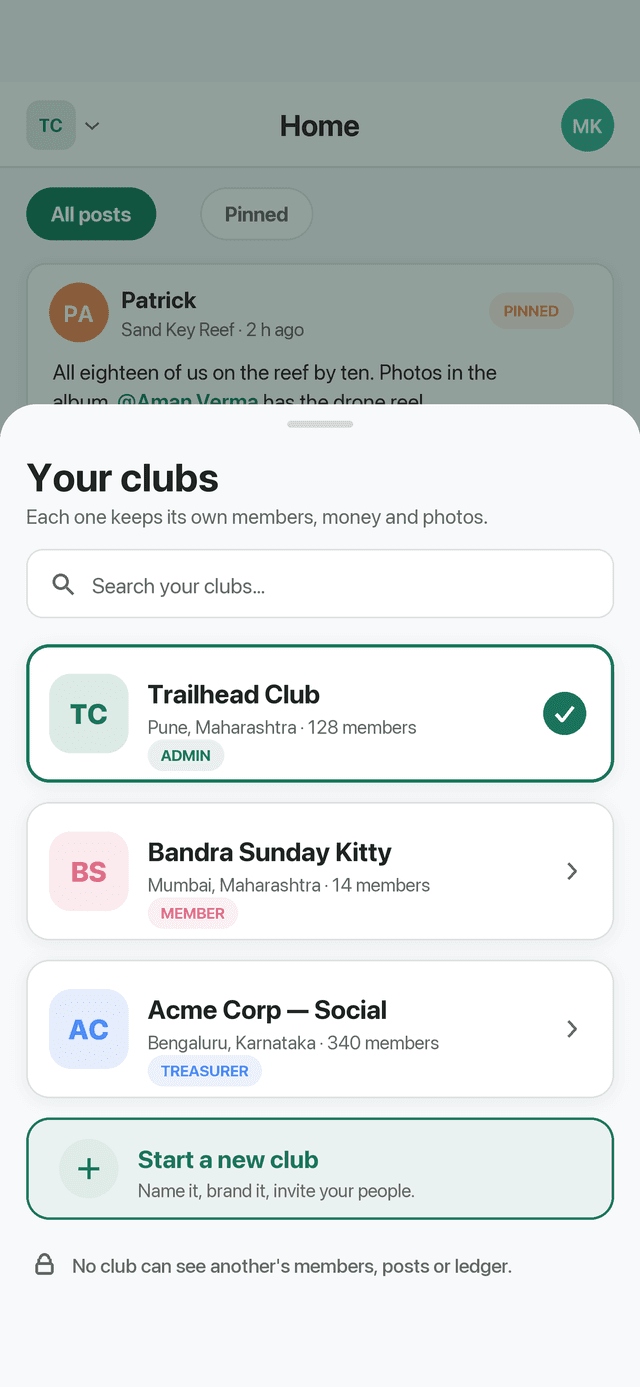
- The crest, top left. Which club you are acting in. Tap it to open this picker: switch clubs, or start one of your own. Your role in each is on its row.
- Your avatar, top right. Your profile, your garage, your documents and the settings screen.
- The five tabs. Home, Member Map, Outings, Members and Club Info, in that order, left to right.
- Finances is not a tab. It is reached from the Club Info tab, along with Documents, Rules, Assets and (for admins) Reported Content.
| Tab | What it is for |
|---|---|
| Home | The club feed: notices, photos, polls, comments. Where the club talks to itself. |
| Member Map | Where the members who are sharing their location are, right now. Off until you switch it on. |
| Outings | Every outing the club has ever run, on one timeline. Planning, enrolling, the day itself and the expenses. |
| Members | The roster: who is in the club, their roles, their safety details and their vehicles. Invitations start here. |
| Club Info | The club itself: its details and branding, plus the way in to Documents, Rules, Finances, Assets and moderation. |
Home: the club feed
The feed is the club talking to itself. It is newest first, it pages as you scroll, and nothing in it leaves the club.
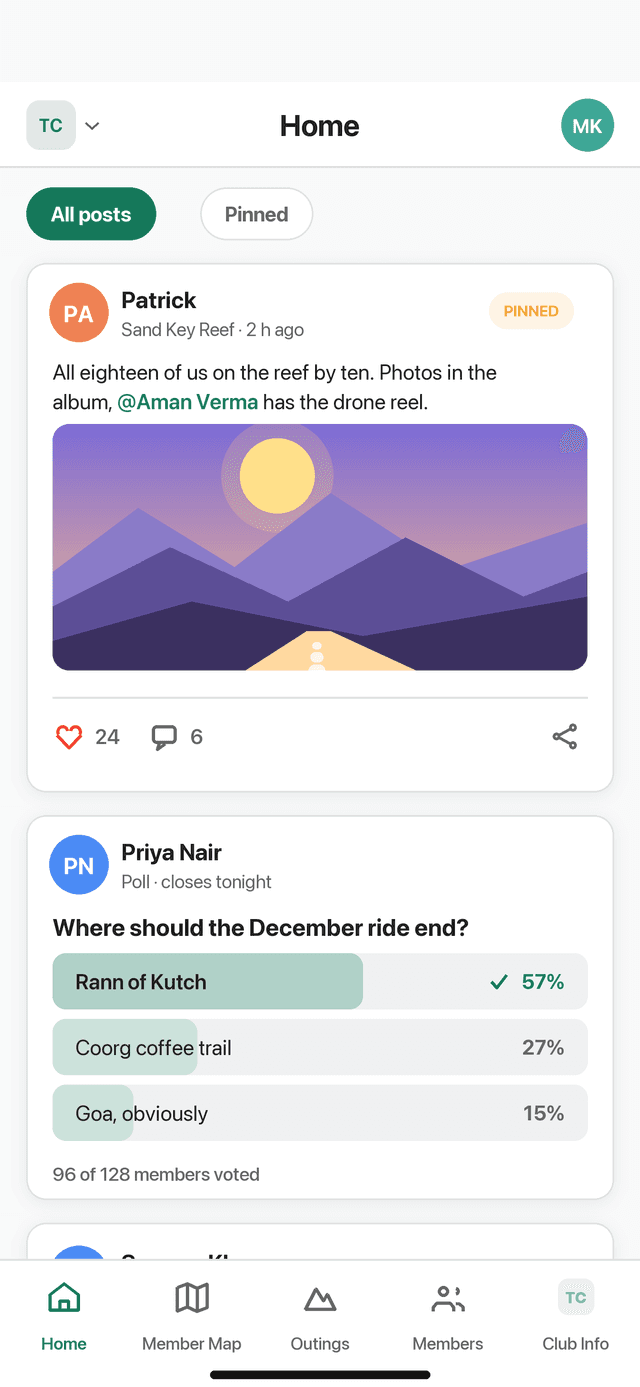
- The filters. Narrow the feed to the pinned posts, or to the polls that are still open, which answers what has the club asked me that I have not answered.
- A post. Text, an optional photo (with filters before you post it), reactions and comments. Tap the author to open their profile.
- PINNED. An admin has pinned it. Pinned posts are the club's notices and are what the Pinned filter shows.
- A poll. Vote by tapping an option. The result updates as people answer, and the poll closes when its author or an admin closes it.
Writing a post
- Tap the composerThe Share something with the club… row at the top of the feed opens it.
- Write, and tag if you need toType @ and a name to tag a member: they are notified and their name becomes a link. @all tags the whole club, so use it for the things everybody genuinely has to read.
- Add a photo, or make it a pollA photo can be filtered before it goes up. A poll takes a question and its options, and has two switches: Anonymous hides who voted for what, and Dynamic lets members add options of their own.
- PostIt appears at the top immediately. You can edit or delete your own posts and comments afterwards from the menu on the card.
A banner appears above the feed for as long as an outing is running. Tapping it opens that outing, which is the quickest way to the live map and the expense tracker on the day.
If a post is out of order
Every post, comment and member carries Report. A report goes to your club's admins, who see it under Club Info → Reported Content. You can also Block a member, which hides their posts and comments from you without telling them and without involving anybody else. Blocked members are listed in Settings, where you can unblock them.
Planning an outing
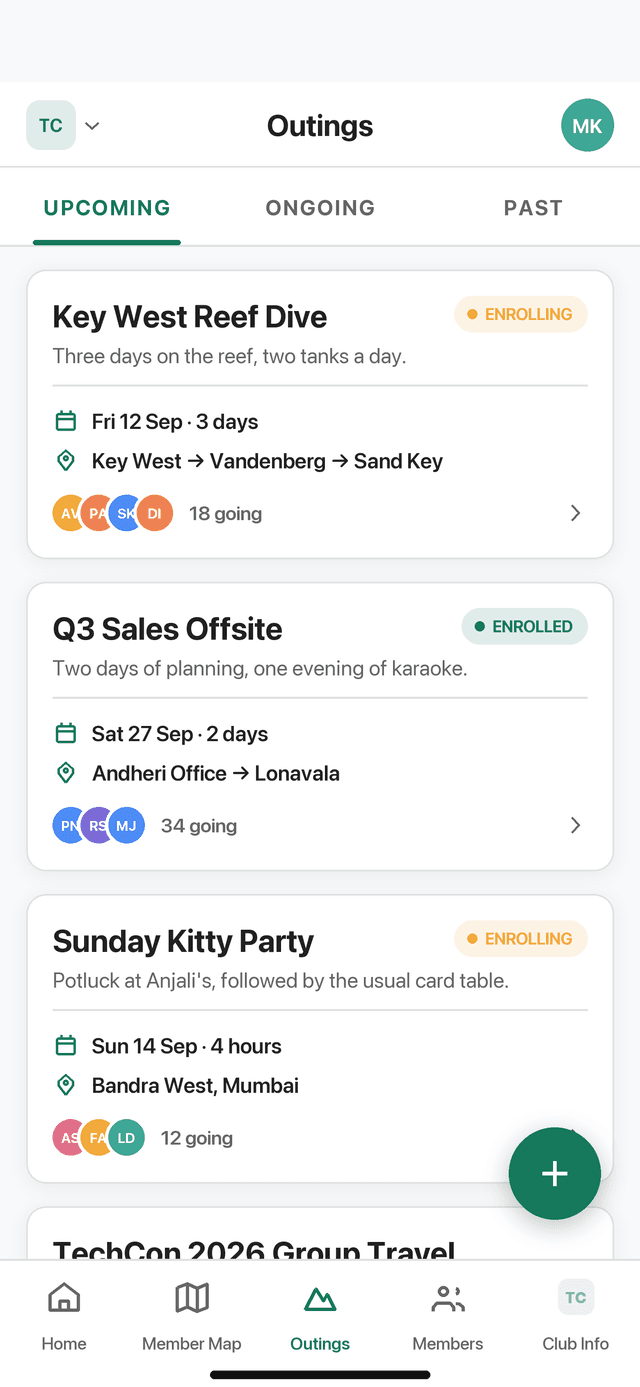
An outing is whatever the club goes and does together: a nine-day road trip, a Sunday breakfast, a workshop, a beach clean. The Outings tab is one timeline of all of them, grouped into what is happening now, what is coming up, what has no date yet and what is past. There is a search box for finding an old one by place or month, a filter for the five types, and a button that turns the timeline into a calendar.
The five kinds of outing
Four of them are a label and a filter. The fifth changes the form.
- Adventure — rides, hikes, treks: the club out for its own sake.
- Travel — anywhere, for any reason.
- Social — meetups, dinners, family days.
- Learning — workshops, training, talks.
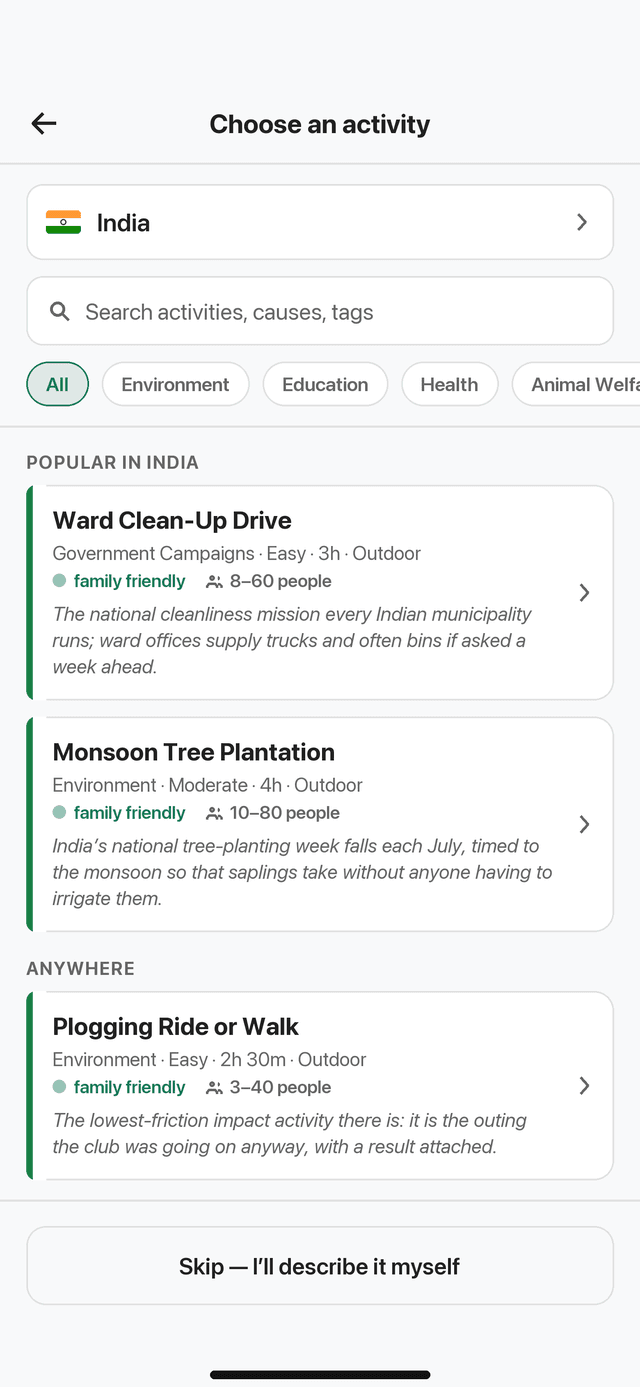
- Community Impact — volunteering, conservation, charity, public service. This one opens the impact block and the activity catalogue; see Community Impact below.
Creating one
Admins create outings. Captains can edit the ones they are leading. Tap the + button on the timeline.
- Choose the kind of outingPick one of the five. Community impact then offers the catalogue, or Skip — I'll describe it myself.
- Title, description, flag offThe title is the only required field. The flag-off date and time are what put the outing on the timeline and on the calendar; leave them out and it sits under NO DATE YET until you fill them in.
- Appoint captainsAnyone in the club. A captain can edit the outing, manage its roster, check members in and move it through its states, but only for this outing. Only an admin can change who the captains are.
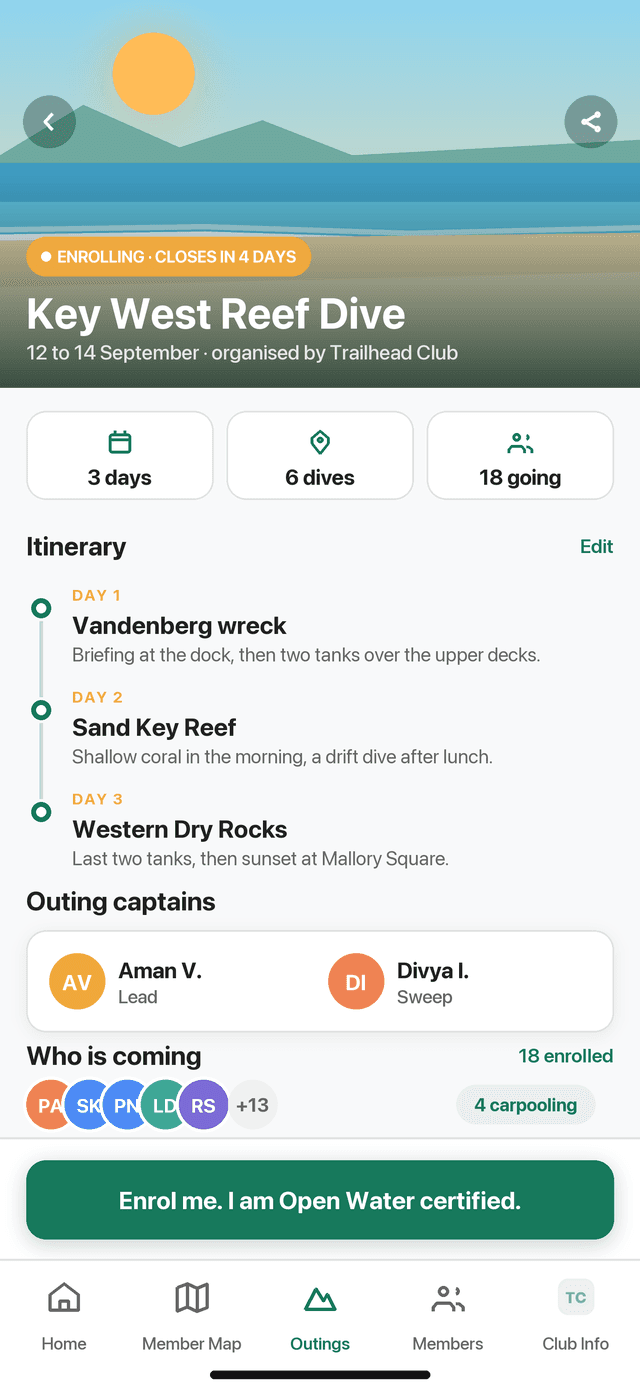
- Write the itineraryOne block per day, each with a title, a description and a destination you search for or drop a pin on. Day 1 also carries the starting point. Those points are the route the outing map draws, so the itinerary and the map are the same answer entered once.
- Save it as a draft, then publishA new outing is a draft, visible only to admins and its captains. When it is right, press Start Enrolment and the club can see it and enrol.
What the statuses mean
Only admins and captains can see itThe outing exists and can be edited freely. Nobody is told about it and nobody can enrol. An admin can still delete it outright; from here on, nothing is ever deleted.
Open for enrolmentEvery member can see it and press Enrol me in this outing. This is the only state in which the roster grows by itself.
The list is closedEnrolment has been closed by an admin or a captain. Who is coming is now settled, so kit, vehicles and bookings can be counted on.
The outing is under wayA banner appears at the top of the club feed, check-in opens on the roster, and the outing's own map goes live. Expenses can be added from here.
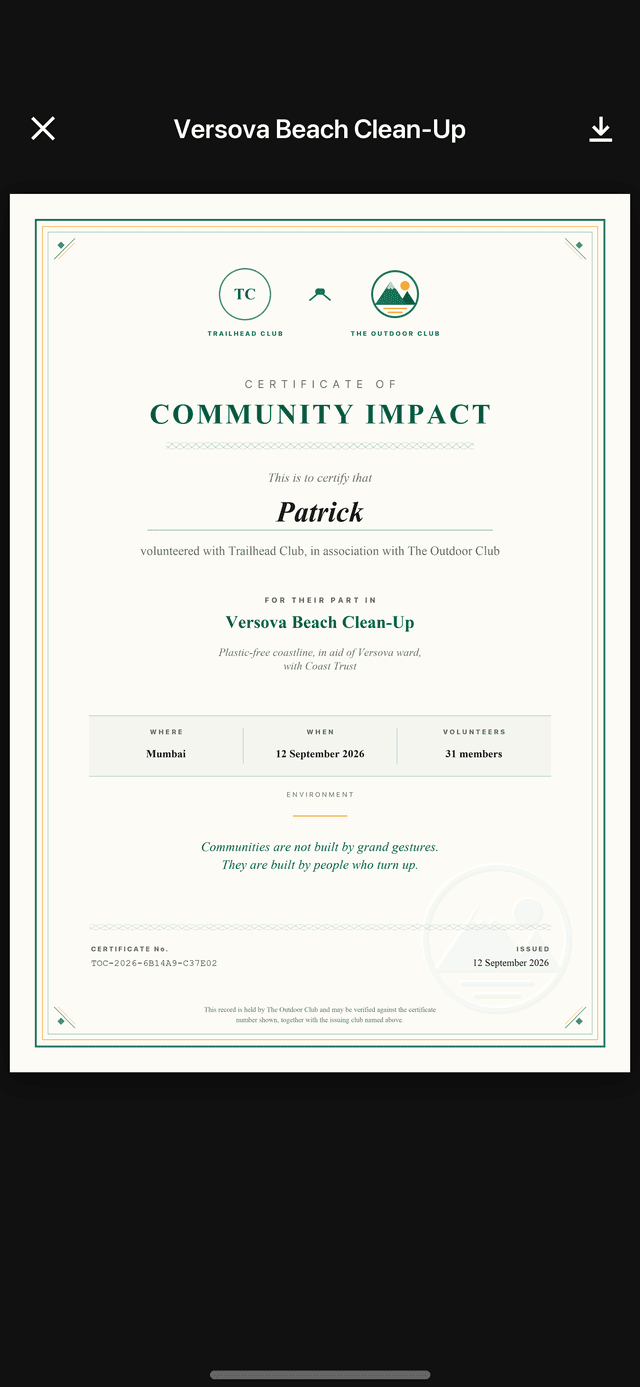
Over, and settledThe expense tracker closes into a final settlement, and on a community-impact outing a certificate is issued to everyone who attended.
Cancelled is the sixth state and sits off the track: an outing can be cancelled from any state after Draft, and it keeps its roster, its expenses and its posts, because members had already committed to a date. An admin can put a cancelled or open outing back to Draft.
Enrolling on an outing
This is the one thing most members ever need to do. Open the outing and press the button at the bottom of the screen.
Enrolling
The button opens a sheet rather than writing anything. Pick a vehicle from your garage, or Carpool if you are riding with somebody, then confirm.
- Press Enrol me in this outingIt sits pinned at the foot of the outing however far down you have read. If the outing has a closing date, the button counts down to it.
- Upload an ID, if you have not alreadyThe first time you enrol, the app asks for one identity document — a passport, national ID, driving licence or similar. It is asked for once, kept for you rather than for the outing, and only you and your club's admins can open it.
- Say how you are getting thereA sheet rises with your garage in it. Pick a vehicle, or Carpool if you are riding with somebody. An empty garage leaves only Carpool; add a vehicle under Profile → My Garage to see it here.
- ConfirmYou appear on the roster and the outing shows YOU'RE IN on the timeline. Press the button again at any time to change which vehicle you are bringing.
You can withdraw yourself while enrolment is open, from your own row on the roster. Once enrolment closes, the club has counted on you: ask an admin or a captain, who can take anybody off for as long as they can put anybody on.
Admins and captains can also enrol other members directly: Manage on the roster opens the full list with an add row, which is how somebody without a phone to hand still ends up on the list.
The day itself
When an admin or captain presses Start Outing (Live GPS), three things happen at once: a banner goes up on the club feed, the outing's own map goes live, and anyone enrolled is notified.
Check-in
From the roster, an admin or captain marks each member Checked In as they arrive, and can un-check a mistake. It is available once enrolment has closed and for as long as the outing is running, so a briefing can be done against the same list the outing was planned with.
The outing map
Separate from the Member Map tab. It draws the route the itinerary described — day 1's starting point, then each day's destination — with the members who are sharing their location on top of it. It is the answer to who is ahead and who is sweeping.
Money on the day
Every outing has an expense tracker, opened from the Expense Tracker row on the outing. It is open while the outing is, and it closes into a final settlement when the outing completes.
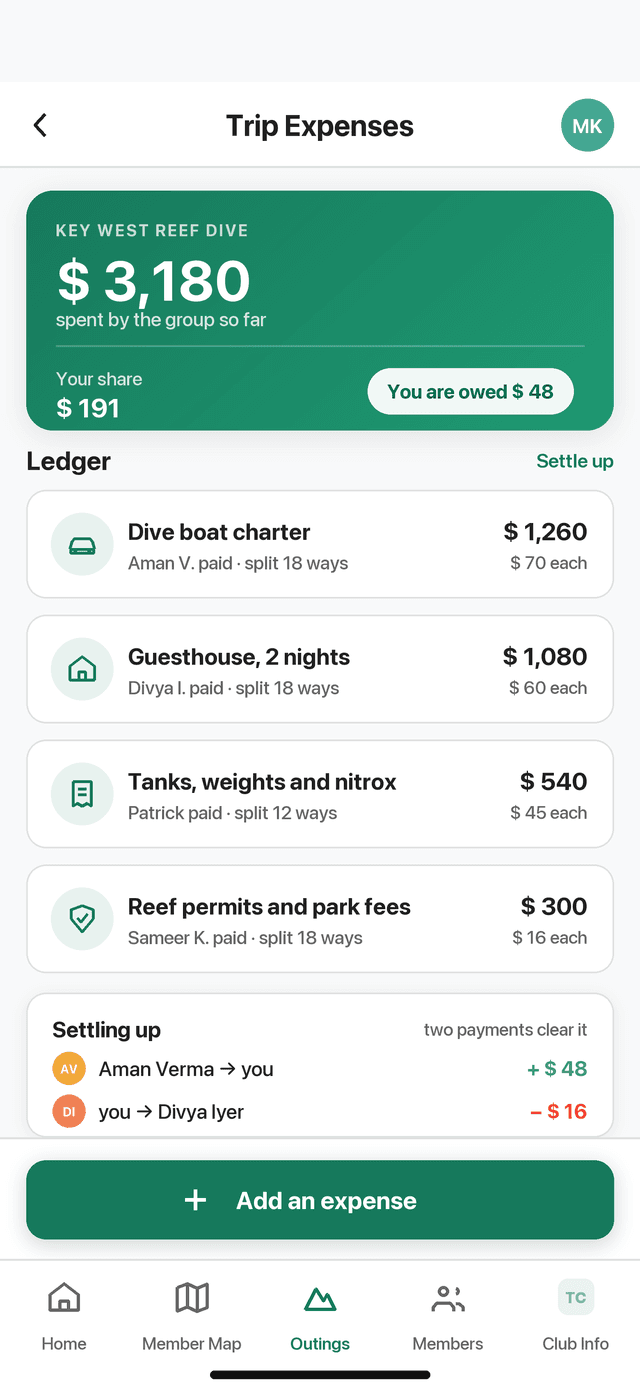
- What the group has spent. The total, your own share of it, and whether you are owed money or owe it.
- The ledger. One row per expense: what it was, who paid, and how many ways it was split.
- Add an expense. A description, an amount, who paid, and which members it is split between. You can delete an expense you logged.
- Settling up. The app works out the fewest payments that clear everything, and names them.
Member Map
The map shows the members of the club you are in who have chosen to share their position. It is the answer to where is everybody, and it is the one part of the app that is off until you turn it on.
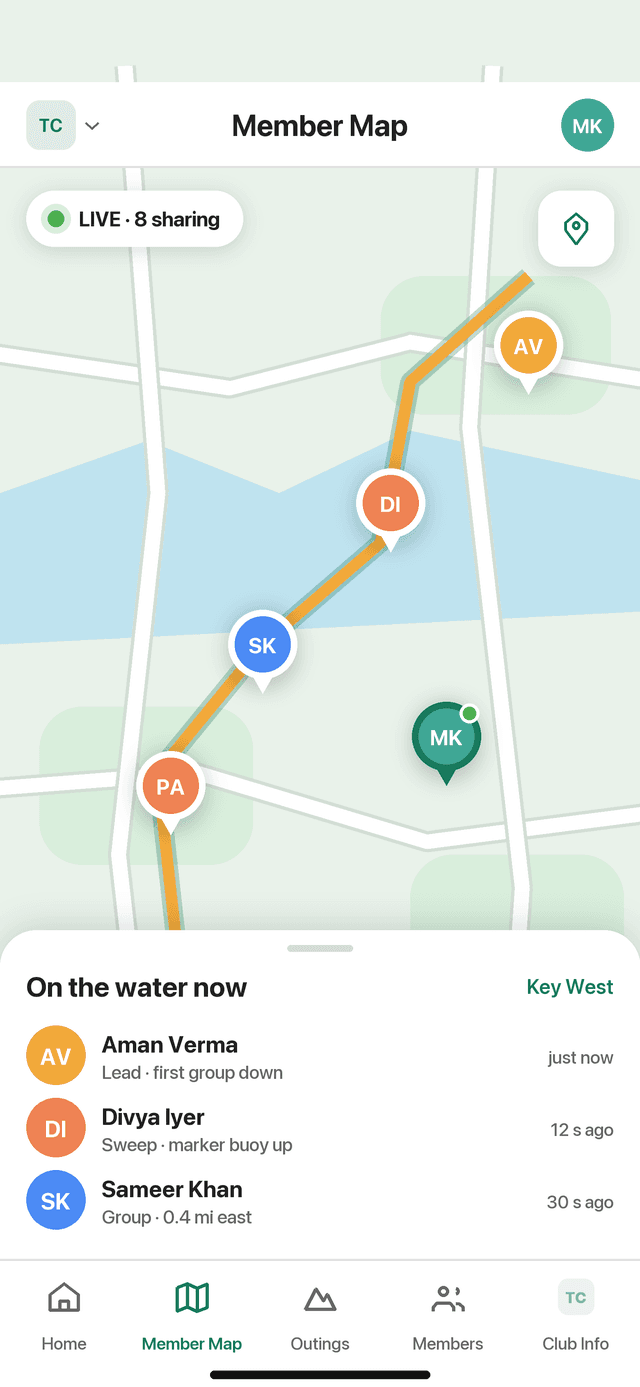
- The live count. How many members of this club are sharing their position right now.
- The pins. One per member who is sharing, drawn with their initials. Yours is marked. Tap any of them to open that member and their garage.
- The locate button. Centres the map on you, which needs your own location permission whether or not you are sharing.
- The sheet. The same members as a list, with how long ago each position arrived, and the Share My Location switch that puts you among them.
Sharing your location
Off until you turn it on, and only ever with the one club you have selected. One position is kept and overwritten; turning the switch off deletes it.
- Only your latest position is kept. There is no trail, no route log and no history of where you have been. Each update overwrites the last one.
- Turning sharing off deletes it. Nothing of yours is left on the map.
- Background sharing is a separate permission. Grant it and the map keeps working with the app closed, which is what makes it useful on a long day. Decline it and sharing still works, but only while the app is open, and the app says so rather than pretending otherwise.
- It is one club at a time. Your position goes to the club you have selected and to nobody else.
Members
The roster. Search it by name or email, or narrow it with the chips: All, Admins, Treasurer, Banned. Tapping anybody opens their full card.
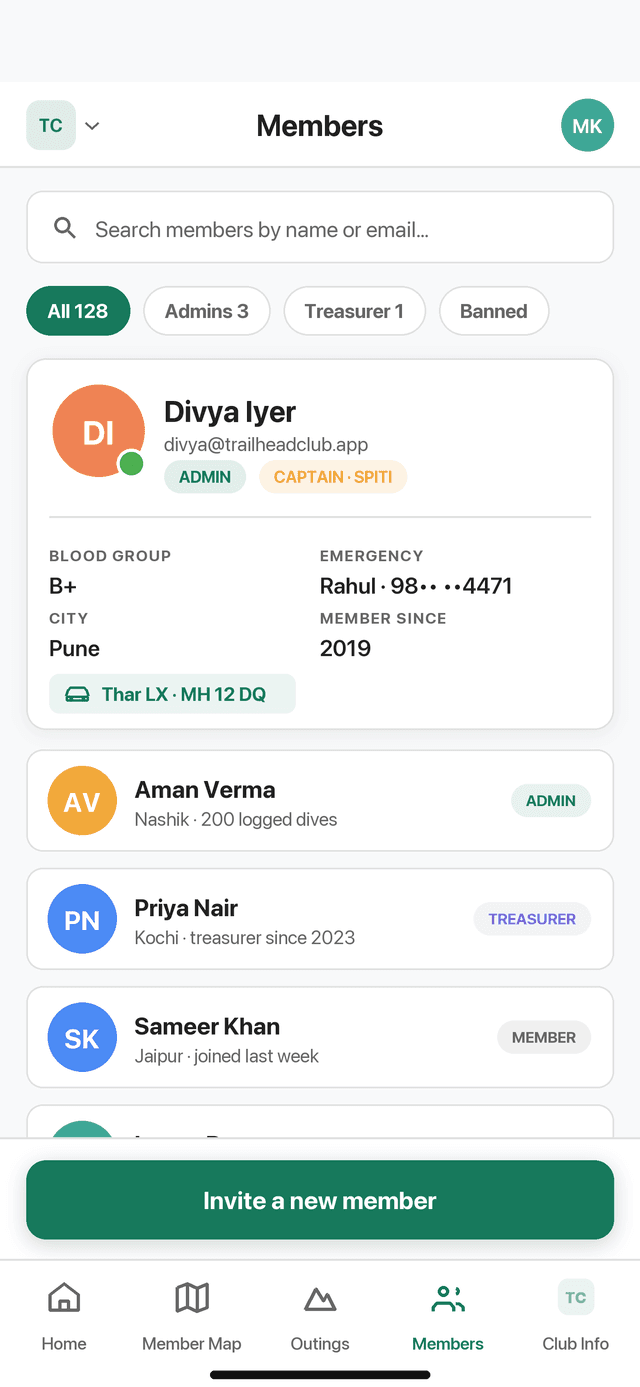
- Role pills. Admin, Treasurer, Member, and Captain where that member is leading an outing.
- The safety block. Blood group, emergency contact, city, member since. Visible to the club, which is the entire point of collecting it.
- The garage. What that member drives or rides, with the registration where they gave one.
- Invite a new member. At the foot of the roster. Admins only.
Inviting people
- Press Invite a new memberAdmins only. Enter one email address, or several at once.
- SendAn address the app has never seen is emailed a link. An address that already has an account is not: the invitation is already waiting for them inside the app. The app tells you which happened.
- Watch the pending listInvitations that have not been answered are listed under the roster, and can be withdrawn from there.
Admin controls on a member
- Role — make somebody a treasurer or an admin, or take it back.
- Ban — they keep their account but can do nothing in this club. Reversible.
- Remove from club — their membership ends. Their account, their other clubs and their garage are untouched.
- Identity documents — open what that member uploaded. Admins only, and only for members of their own club.
Club Info, and the club's money
The last tab is the club itself: who it is, how it looks, and the five things hanging off it.
- Club details — name, short name, description, contact address, base location, the year it started, its currency, its two brand colours and its crest. Admins edit; everybody reads. Changing the colours re-brands the app for every member of that club.
- Documents — bylaws, forms, permits, anything the club needs to hand. Admins upload; everybody can open and download.
- Rules— the club's written code of conduct, one rule per entry. Admins write; everybody reads.
- Assets — logos, banners and artwork members might need, such as for a sticker or a poster.
- Reported Content — admins only. Every report the club has received, pending or reviewed. Deny closes it; upholding one removes the post or comment, and on a report about a member it says so and sends the admin to the Members tab to ban or remove them.
Finances
The club's own books, reached from the Club Info grid. Every member can read them. The treasurer and the admins can write to them.
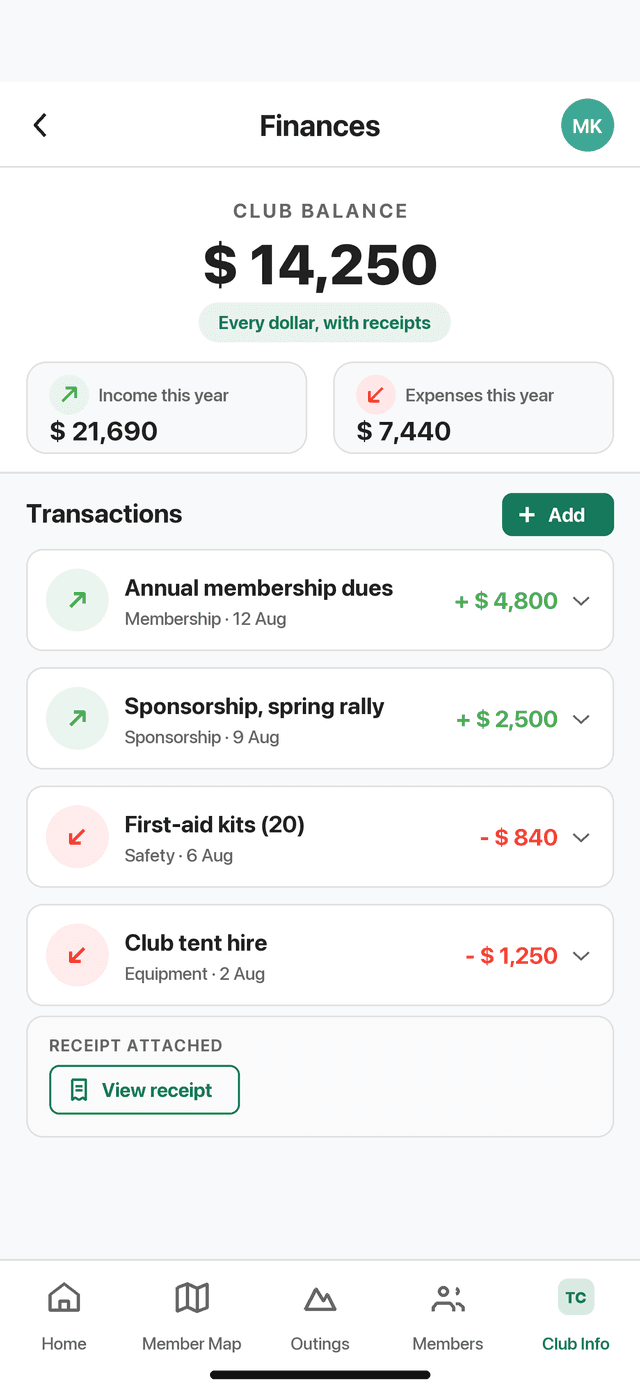
- The balance. Income less expense, in the currency the club chose during setup, with the two totals under it.
- The transactions. Every entry, newest first, with who logged it, its category and its notes. Tap one to open it.
- Adding one. Income or expense, an amount, a title, a category (outings, merchandise, events, sponsorship, donations, operational, other) and a receipt image if there is one.
- The receipt. Attached to the entry and openable from it, which is what makes the ledger auditable rather than a list of numbers.
Leaving, and closing
Leave the clubfrom the bottom of this tab. You are asked what should happen to what you wrote: keep it without your name, or delete it. Your account, your other clubs and your garage are unaffected. A club's only admin cannot leave without first appointing another admin or closing the club.
It takes the members, the outings, the posts, the ledger and the documents with it, and the app asks you to type CLOSE before it will do it. There is no undo.
Community Impact
A community-impact outing is an ordinary outing — same roster, same captains, same statuses — with three things added: a type, a plan, and a certificate at the end of it.
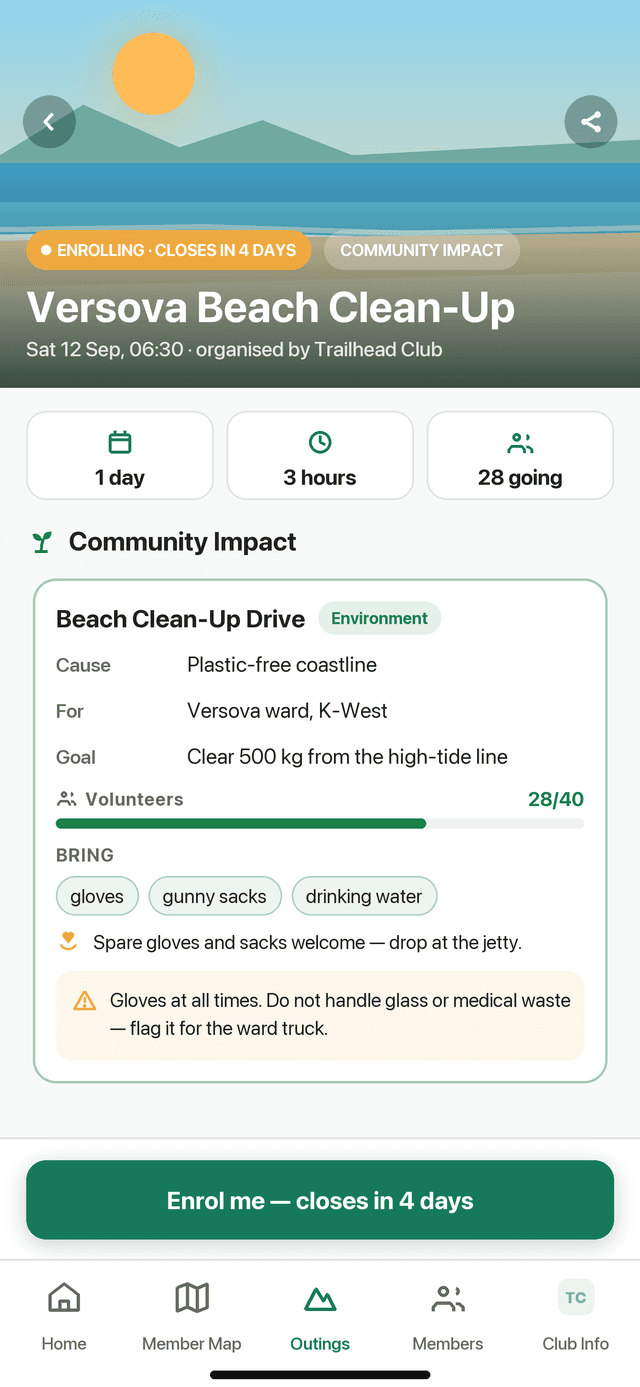
While enrolment is open, the impact panel on the outing shows volunteers enrolled against volunteers wanted, as a bar that fills. It is the one number on that panel that moves on its own, and it is why an organiser opens the outing twice a day.
Certificates take a moment to prepare. Until yours is ready the card says so; it appears on the completed outing, and you are notified when it lands.
You: profile, garage and settings
Everything that is yours rather than the club's is behind the avatar at the top right, and it follows you to every club you join.
Your profile
- Photo and name, phone, city, profession, birthday, gender, T-shirt size.
- Blood group and emergency contact. Optional, and the two the club will want if anything goes wrong.
- My Garage. Your vehicles, with make, model, year and registration. This is the list you pick from when you enrol.
- Identity documents.One is asked for the first time you enrol on an outing; you can add others and name them. Only you and your club's admins can open them.
Settings
- Biometric lock — require Face ID, Touch ID or your device passcode every time the app opens.
- Notifications — turn them on, or open the system settings if you said no the first time. You are asked once; the app never nags.
- Change password — current password, then the new one twice.
- Blocked members — everybody you have blocked, and the way to unblock them.
- Close my account — permanent, and it asks what should happen to your posts first.
What you will be notified about
A member joining or leaving your club. Being tagged in a post. A post addressed to the whole club with @all. A transaction recorded in the club ledger. An outing you enrolled on setting off. And a community-impact certificate when yours is ready. Decline notifications and the app works exactly as before; it simply tells you nothing while it is closed.
Who can do what
| Role | Can |
|---|---|
| Member | Read and write in the feed, vote in polls, enrol on and withdraw from outings, add expenses to an outing they are on, share their location, read the ledger, the documents and the rules, and edit their own profile and garage. |
| Captain | Not a club role but a job on one outing. Edit that outing, manage its roster, check members in, and move it through its states. Appointed by an admin, per outing. |
| Treasurer | Everything a member can, plus writing to the club ledger: logging income and expenses and attaching receipts. |
| Admin | The full run of the club. Invite, remove, ban and promote members; create and delete outings and appoint captains; edit the club and its branding; upload documents, rules and assets; write to the ledger; act on reports; close the club. |
Roles are per club. Being an admin of one club gives you nothing in another, and the boundary is enforced in the database rather than only in the app.
If something looks wrong
- I am signed in but see no club. That is what no membership looks like. Either an invitation is waiting to be accepted, or you can found a club from the picker. It is also where you land after leaving your last club.
- My invitation link opened a browser. Install the app first, then open the link on that same device. A link works once; if it has been used, ask your club for another.
- Nobody is on the map. Only members who have switched sharing on appear. Check your own permission, check that sharing is on for the club you are looking at, and allow background location if you want it to keep working with the app closed.
- I cannot enrol. Enrolment has to be open. An outing in Draft is not visible to members at all, and one in Enrolled has closed its list.
- An outing I could see has gone. An admin can put a published outing back to Draft, which hides it again. Nothing you had done to it is lost.
- The invitation never arrived. Check the spam folder, and check the address: it has to be the one the club typed in. An admin can withdraw the invitation and send a fresh one.
Still stuck? The FAQ answers the questions people ask most, and toc@airmicroservices.com reaches us directly. The Privacy Policy says exactly what is collected and who can see it.